
Building an ARM Linux image on MAC using crops/poky docker
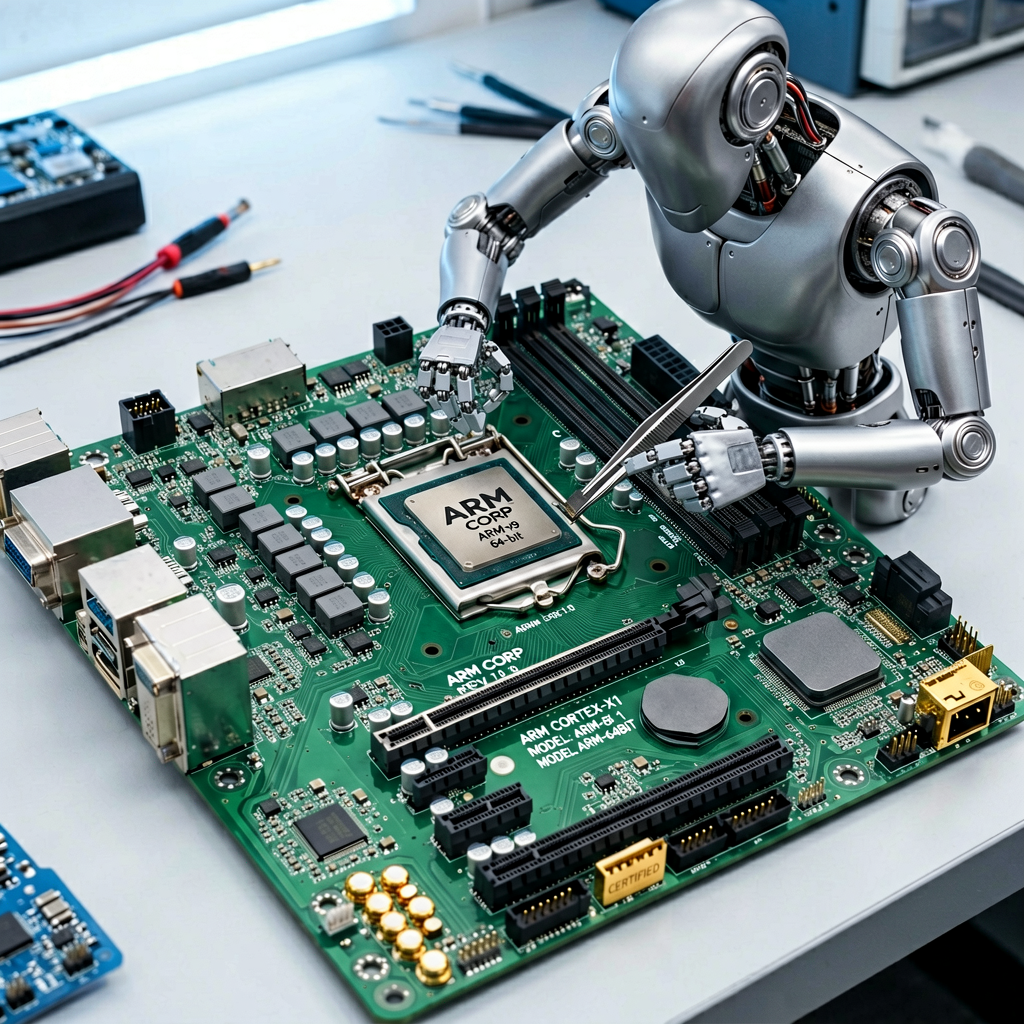
Setup the hardware?
The build is going to be done on a MAC mini with Apple Silicon.
Make sure that Docker Desktop is installed and running the latest version.
Download the image to use:
docker pull crops/poky:ubuntu-22.04
Once that is complete, check if the image is downloaded:
docker images
Output looks like this
IMAGE : crops/poky:ubuntu-22.04, ID : b9c23dda3
Create a shared volume that will keep the downloaded git code and also the compiled directories like sstate-cache and downloads. These two directories are critical to keep around as they will fill up the first run, but subsequent versions will only be rebuilt is something changes.
Startup the docker image
Use this command to start the docker image
docker run -it --platform linux/amd64 --name my-poky-container -v /Users/anilve/code/YoctoSamples/simplepoky:/workdir crops/poky:ubuntu-22.04 /bin/bash
Explaining this command:
docker run command is to run an image
--it is saying we want an interactive terminal
--platform linux/amd64 is specifically for the MAC hardware running on Apple Silicon. That is a ARM based hardware. If you do not add this, it assume a Intel based x86 hardware and you get errors on the MAC.
--name gives the name to th container when it is running
-v (local directory on workstation):(directory to map on the container). This is a local directory on your workstation that is mapped to a shared directory on the linux container. Makes it easy for disk space to grow as you get git code and also compile it.
crops/poky:ubuntu-22.04 is the name of the image to use.
/bin/bash is the script to use when the container terminal starts up.
Setting up poky and bitbake.
Change to the workdir:
cd /workdir
Clone the git code for poky that is labelled as scarthgap
git clone -b scarthgap --depth=1 git://git.yoctoproject.org/poky
Once the poky source has been cloned, change into the poky directory
cd /workdir/poky
Once we have cloned the poky, change into the poky directory
cd /workdir/poky
Get the meta directory for ARM
By default poky does not have the support for ARM hardware. So we need to get the meta layer meta-arm.
Clone the directory from git, and get the scarthgap build
git clone -b scarthgap --depth=1 git://git.yoctoproject.org/meta-arm
Initialize the build environment
Initialize the poky builder:
source ./oe-init-build-env
A new directory called build is created under the /workdir/poky
This has also setup bitbake with the path and directories needed.
/workdir/poky/build/conf directory has configuration files.
bblayers.conf - which layers are included in the BB.
local.conf - Various settings including the default machine we are compiling for. Leaving the default as qemux86-64.
Add the bitbake layers for ARM
Get to the directory with the configurations
cd /workdir/poky/build/conf
Add the arm layers
bitbake-layers add-layer /workdir/poky/meta-arm/meta-arm-toolchain
bitbake-layers add-layer /workdir/poky/meta-arm/meta-arm
Make sure that the new layers are available in the bblayers.conf file
Update the local.conf file
On a Mac, the shared location is not case sensitive and you will get an error. You can resolve this two ways:
Create a new disk that is case sensitive
Setup a temp directory on the docker since that is a case sensitive OS
Lets create a new directory /home/pokyuser/tempdir
mkdir /home/pokyuser/tempdir
Update the local conf file
Set the machine to arm:
MACHINE = "qemuarm64"
Set the TMPDIR
TMPDIR = "/home/pokyuser/tempdir"
Clear the temporary files to save some diskspace add the following line to your conf/local.conf file:
INHERIT += "rm_work"
Update the thread and parallel make in local.conf
BB_NUMBER_THREADS = "2"
PARALLEL_MAKE = "-j 2"
Run the bitbake command to build
We shall run a basic core minimal build.
bitbake core-image-minimal
You will see output like this:
Loading cache: 100%
Loaded 0 entries from dependency cache.
Parsing recipes: 100%
Parsing of 920 .bb files complete (0 cached, 920 parsed). 1878 targets, 47 skipped, 0 masked, 0 errors.
NOTE: Resolving any missing task queue dependencies
Build Configuration:
BB_VERSION = "2.8.1"
NATIVELSBSTRING = "ubuntu-22.04"
MACHINE = "qemuarm64"
DISTRO = "poky"
meta
meta-poky
meta-yocto-bsp = "scarthgap:8643f911602949518c5c5474726b49f943e36b83"
meta-arm-toolchain
meta-arm = "scarthgap:a81c19915b5b9e71ed394032e9a50fd06919e1cd"
The build could take upto 7-8 hours when run for the first time.
Once done, where are the files available?
The output of the bitbake command is sent into the temp directory's deploy subdirectory.
Since we have only one hardware selected as output in the local.conf, you can find the built files here:
/home/pokyuser/tempdir/deploy/images/qemuarm64
Here is the list of files that were generated for me:
pokyuser@e1c64cdf2632:~/tempdir/deploy/images/qemuarm64$ ls -al
core-image-minimal-qemuarm64.rootfs-20260422024341.ext4
core-image-minimal-qemuarm64.rootfs-20260422024341.manifest
core-image-minimal-qemuarm64.rootfs-20260422024341.qemuboot.conf
core-image-minimal-qemuarm64.rootfs-20260422024341.spdx.tar.zst
core-image-minimal-qemuarm64.rootfs-20260422024341.tar.bz2
core-image-minimal-qemuarm64.rootfs-20260422024341.testdata.json
Image--6.6.123+git0+17375dce17_2df2455c71-r0-qemuarm64-20260422024341.bin
modules--6.6.123+git0+17375dce17_2df2455c71-r0-qemuarm64-20260422024341.tgz
GitHub References
Want to see the steps and the configuration files for your use?
Building ARM based Yocto on MAC
Blog Series
This is the sixth article in the series. Older articles links:
2. What is the bitbake tool for Yocto?
3. How to use the poky for custom Linux dev using Yocto
4. Setup the foundation for building with Yocto
5. Build a x86 Minimal Image on a MAC using crops/poky docker